
Help Center
Welcome to the MarketAlerts Help Center. Learn how to use AI-powered stock analysis, set up real-time stock alerts, track insider trading signals, identify technical chart patterns, monitor earnings surprises, and build custom stock screeners.
1. Getting Started
1.1 Create Your MarketAlerts Account
You can create a MarketAlerts account in three ways:
- Sign up with Google
- Sign up with Apple
- Register with your email address
If you register via email:
- You will receive a temporary password
- You must change it on your first login
1.2 Install the Mobile App (For In-App Notifications)
To receive push notifications and in-app stock alerts, install:
- MarketAlerts – AI for Stocks (iOS)
- MarketAlerts – AI for Stocks (Android)
2. Alerts & Notifications
MarketAlerts helps you automate monitoring with real-time alerts for market signals such as insider trading, technical patterns, earnings surprises, analyst rating changes, politician trades, fund flows, and M&A activity.
2.1 How to Create an Alert
- Open the Alerts tab
- Click Add New Alert
- Follow the guided setup flow
For each alert, you can select one or more delivery methods:
- Email alerts
- Telegram alerts
- In-app / push notifications (requires mobile app)
2.2 Connect Telegram Notifications
To activate Telegram alerts:
- Open Telegram
- Search for
@marketAlertsOfficialBot - Start the chat
- Complete phone verification as instructed
2.3 Manage Contact Preferences
To update notification contact methods:
- Go to Alerts
- Click Manage Contact Types
- Verify/update Email, Telegram, and In-app settings
2.4 Types of Alerts
- Ticker Alerts: Track one specific stock in real time.
- Watchlist Alerts: Track all stocks inside a selected watchlist.
- Screener Alerts: Get notified when new stocks match your screener rules.
- Research Alerts: Get notified when new research from selected providers is published.
2.5 Alert Event Categories
For Ticker and Watchlist alerts, choose which events trigger notifications:
Company & Earnings Events
- Earnings Call – AI Summary
- Official Company Press Releases
- New Product Announcements
- Changes in Financial Guidance
- Earnings Surprises
Auditor Alerts
- Critical Audit Matter (CAM): An audit area requiring complex judgment (often high uncertainty or material impact). Not necessarily negative, but worth attention.
- Going Concern: A major red flag — auditor indicates substantial doubt about the company's ability to continue operating over the next 12 months.
Analyst Ratings
- Upgrade
- Downgrade
Insider Transactions & Insider Signals
- Insider Buy Transaction
- ReBuy
- Cluster
- PowerBuy
- Significant
Financial Signals
- GROWTH
- TANGIBLE
- CASHCOW
- COMPOUND
Politician Trade Signals
- ReBuy (Politician Trades)
- Cluster (Politician Trades)
M&A Alerts
- Merger
- Acquisition
High-Conviction Fund Trades
- All-In
Whale Trades
- Whale Buy
- Whale Sell
Earnings Surprises
- Positive Total Surprise
- Negative Total Surprise
- Positive Revenue Surprise
- Negative Revenue Surprise
- Positive EPS Surprise
- Negative EPS Surprise
Technical Chart Patterns
See the full glossary in Section 9 for pattern definitions.
3. Watchlists
3.1 Create a Watchlist
- Go to the Watchlist tab
- Click the + button
- Name your watchlist
3.2 Add Stocks to a Watchlist
- Use Add Stocks to Watchlist
- Search and select the stock
- The stock is added instantly
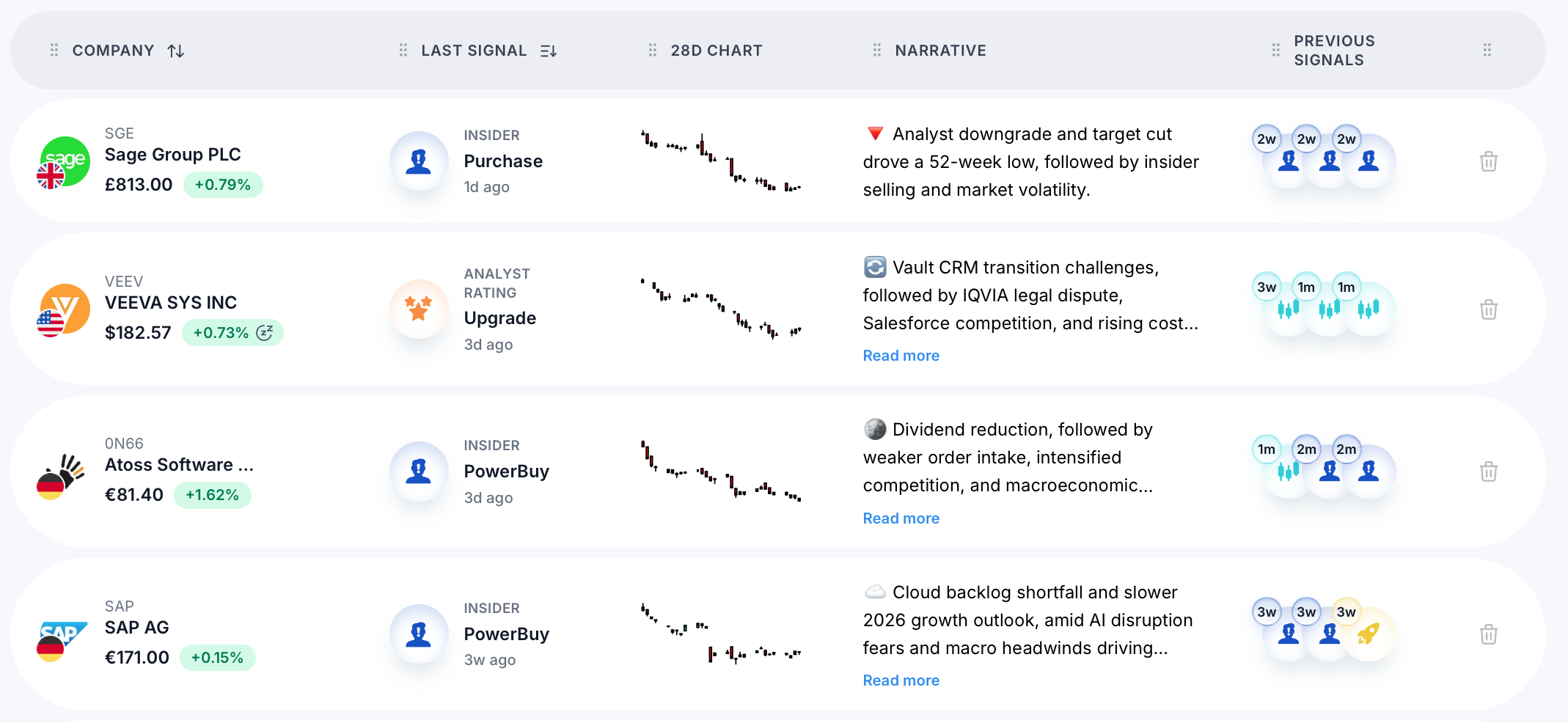
3.3 Watchlist Overview
Each watchlist shows:
- Company name
- Live price
- 24h price change (%)
- Last detected insight for the stock
- 28-day chart
- Recent narrative
- Previous 3 insights
4. Customize Your Dashboard
4.1 Customize Dashboard Layout
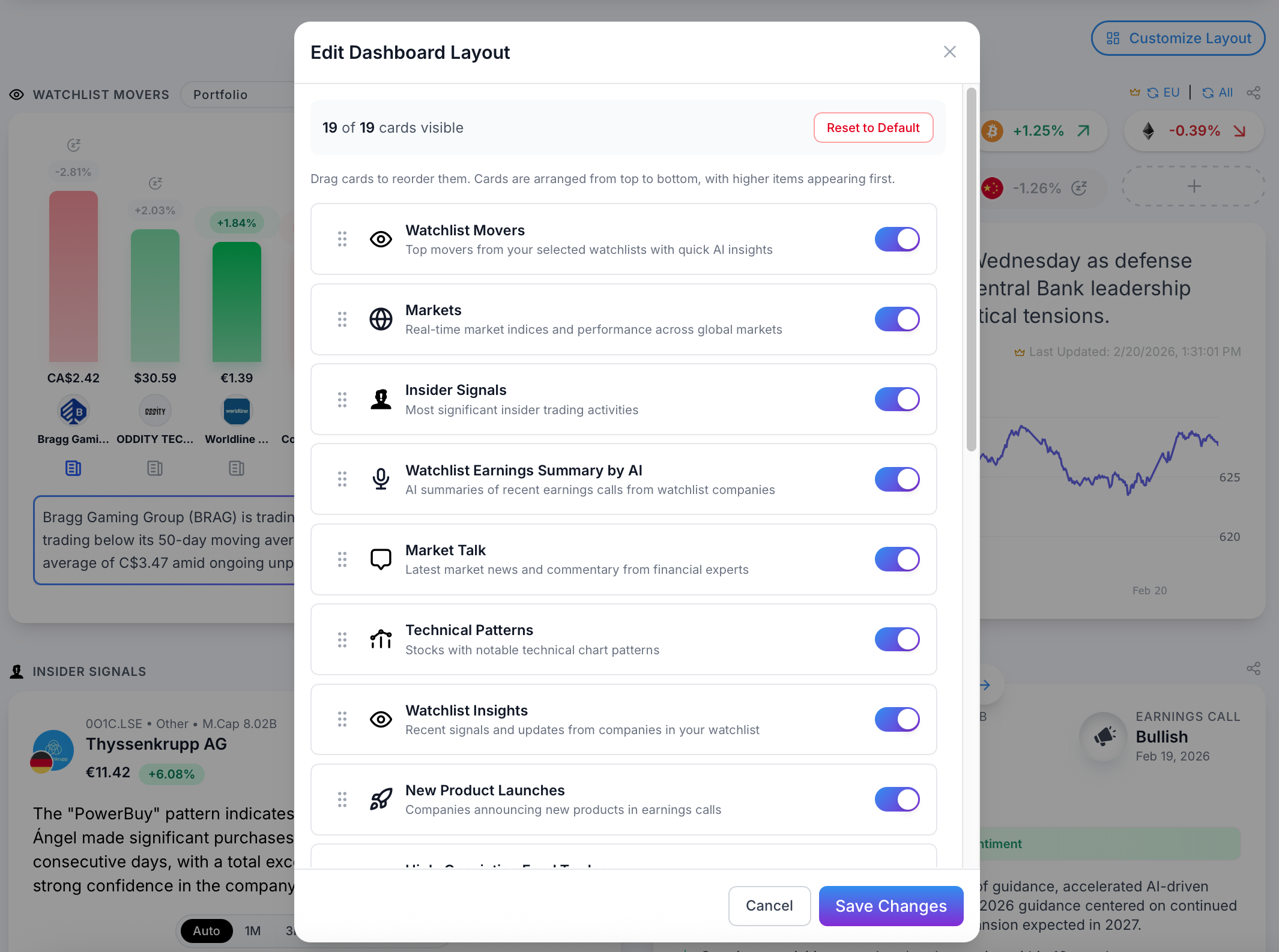
- Sign in to
app.marketalerts.com - On the homepage, click Customize Layout
- Enable relevant modules
- Drag and rearrange them
- Save changes
4.2 Available Dashboard Modules
- Watchlist Movers: Top movers from your watchlists with quick AI insights
- Markets: Real-time indices and global market performance
- Insider Signals: Significant insider buying patterns and insider trading alerts
- Watchlist Earnings Summary (AI): AI summaries of watchlist earnings calls
- Market Talk: Latest market news and commentary
- Technical Patterns: Stocks showing notable technical chart patterns
- Watchlist Insights: Recent signals and updates for watchlist companies
- New Product Launches: Companies announcing new products
- High-Conviction Fund Trades: Concentrated institutional positions
- TradeSearch by AI: AI-generated trade ideas and investment opportunities
- Financial Statement Patterns: Companies with meaningful financial metric changes
- Changing Financial Guidance: Companies raising or reducing guidance
- Research Analysis: AI summaries of institutional research reports
- Earnings Surprises: Revenue and EPS beats/misses
- Famous Fund Manager Moves: Whale buy/sell activity
- Politician Trades: Politician trading activity and clusters
- Analyst Rating Changes: Upgrades and downgrades
- Mergers & Acquisitions: Merger and acquisition announcements
- Auditor Alerts: CAM and Going Concern risk flags
4.3 Fine-Tune Each Module with Filters
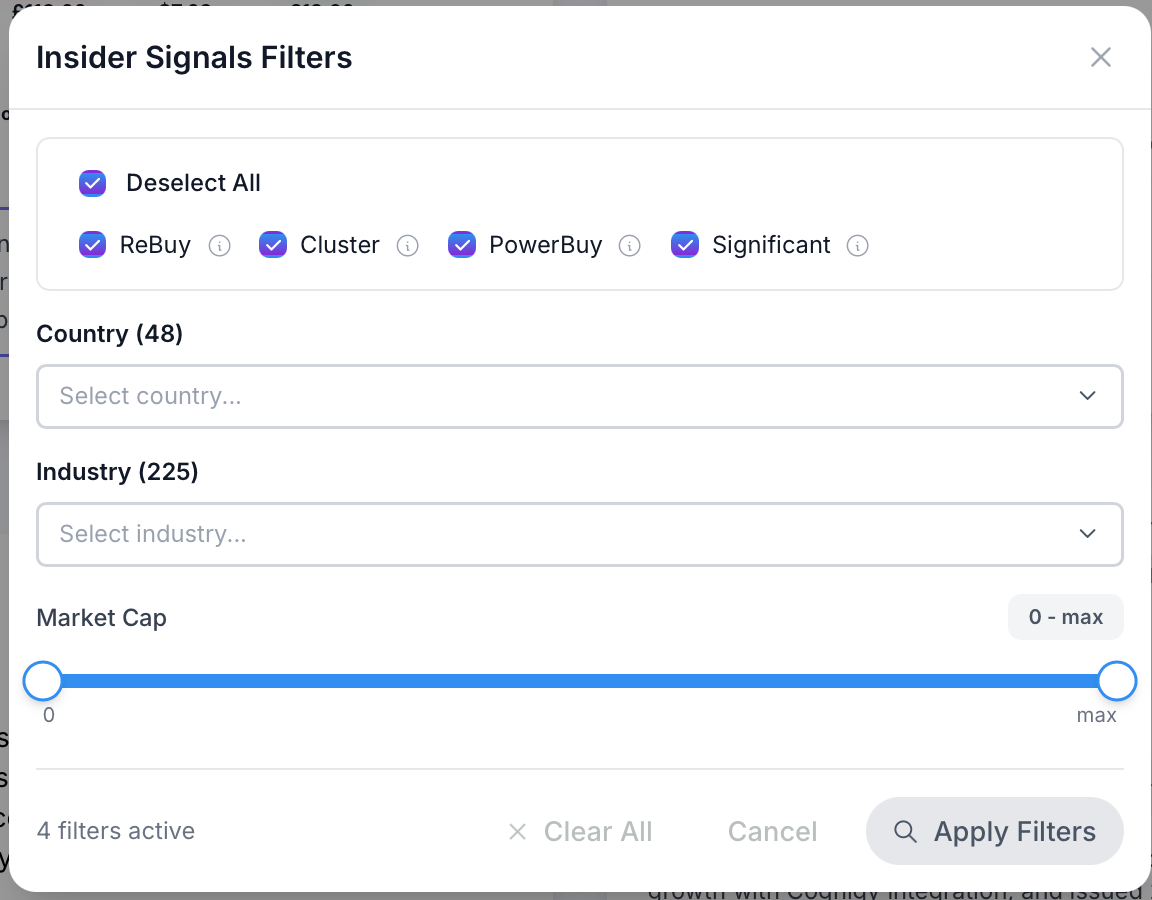
Next to each module, click Edit Filter to choose what you want to track (patterns, countries, industries, market cap, and other criteria).
5. Stock Analysis Pages
5.1 Analyze Any Stock Instantly
- Use the top menu Search field
- Select a stock
- You will open a Company Analysis page
5.2 Customize the Company Analysis Layout
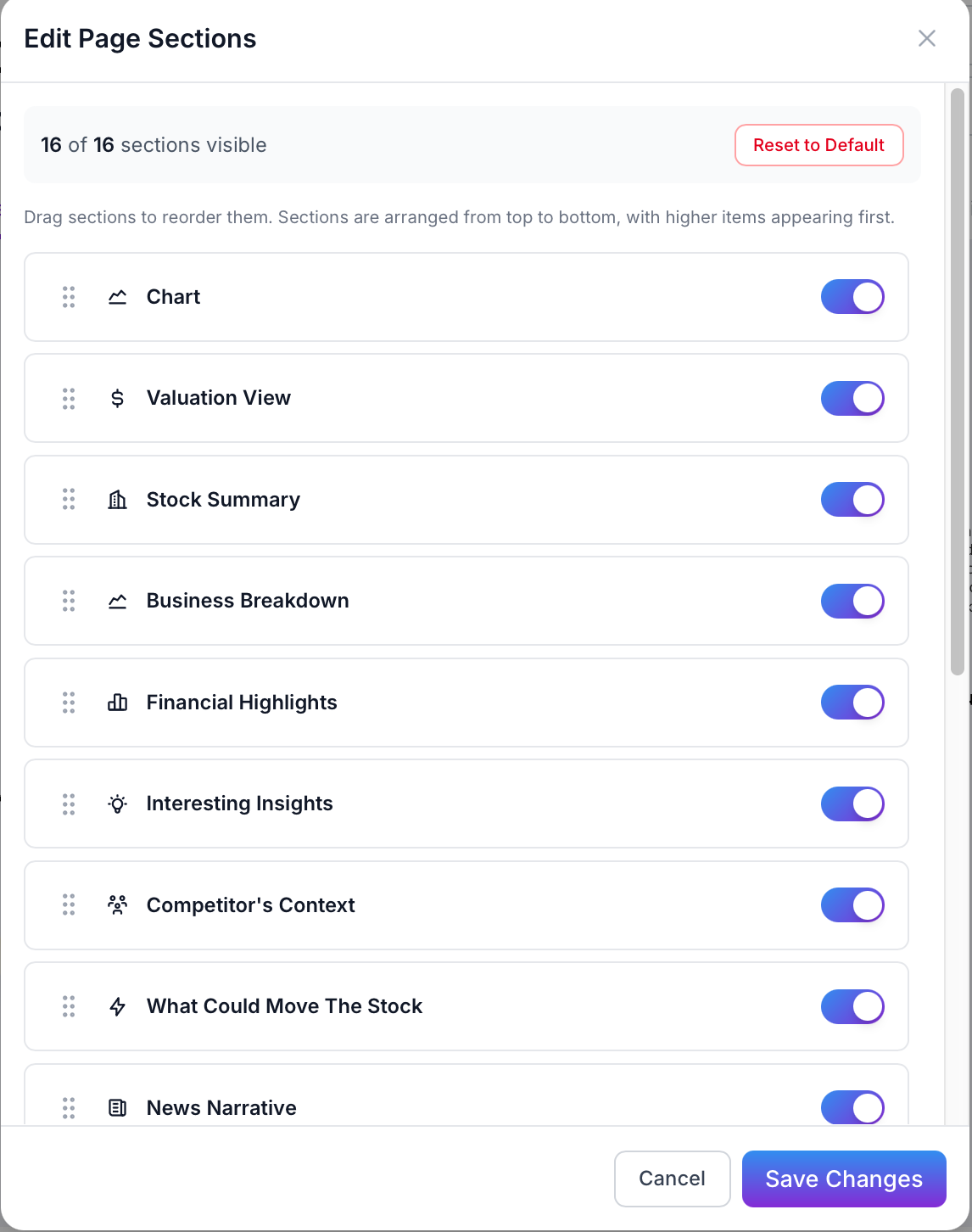
Click Customize Layout to enable and rearrange analysis sections. Once saved, the same layout applies to all stocks on the platform.
5.3 Available Company Analysis Sections
- Chart (with movement explanations where available)
- Valuation View
- Stock Summary
- Business Breakdown
- Financial Highlights
- Interesting Insights
- Competitor's Context
- What Could Move the Stock
- News Narrative
- Earnings Transcript Summary
- Products & Services
- Potentially Better Competitor
- Investment Case
- Conclusion
- Analysts Are Saying
- Social Sentiment
5.4 Actions on a Company Page
- Activate a Ticker Alert for that specific stock
- Add the stock to an existing Watchlist
6. TradeSearch – AI Trade Ideas
6.1 Open TradeSearch
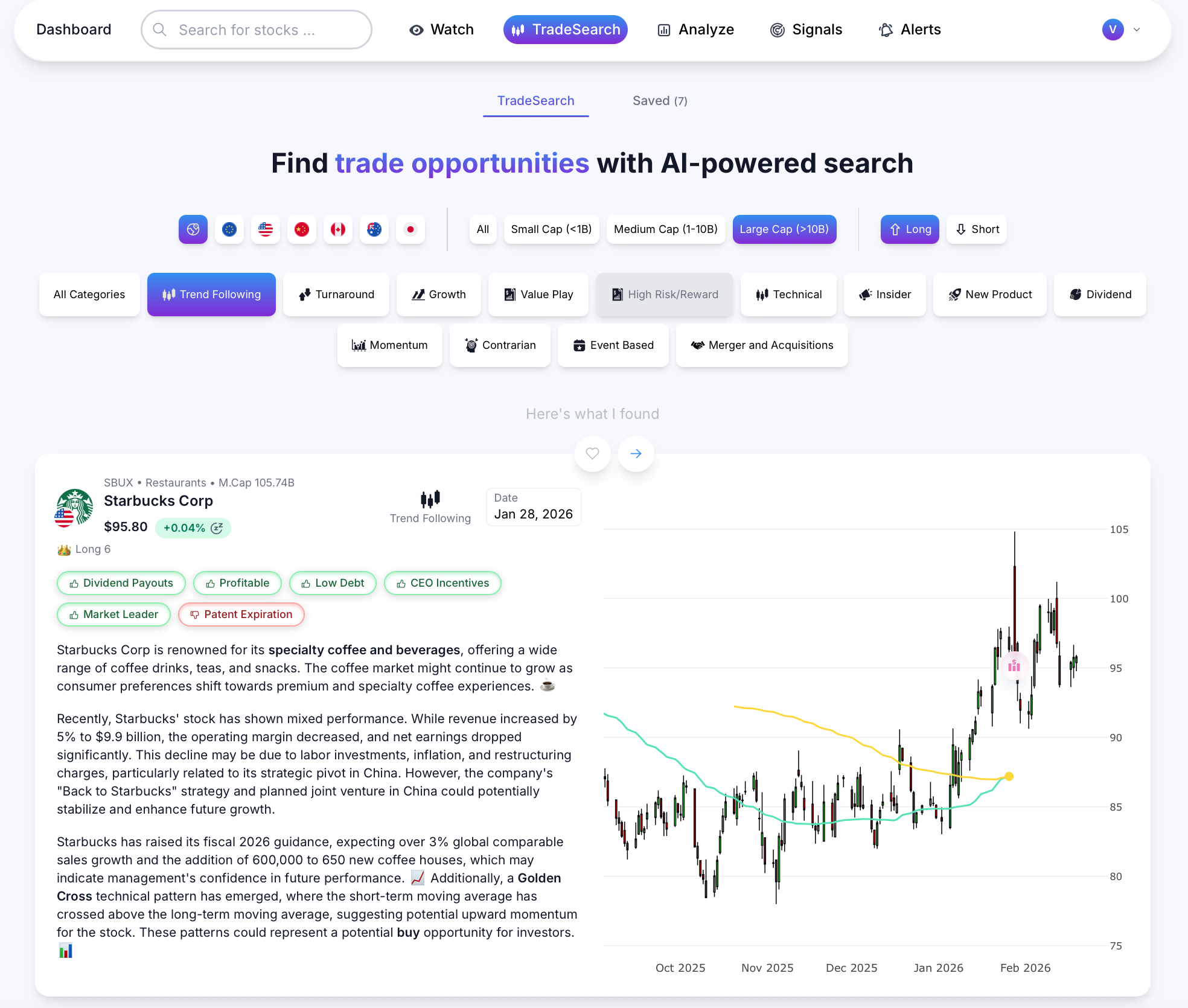
Navigate in the menu to TradeSearch.
6.2 TradeSearch Filters & Categories
TradeSearch includes filters such as country, market cap size, long/short ideas, and strategy categories:
- Trend Following
- Turnaround
- Growth
- Value Play
- High Risk/Reward
- Technical
- Insider
- New Product
- Dividend
- Momentum
- Contrarian
- Event-Based
- Merger and Acquisitions
6.3 How AI Adds Trade Ideas
Select the categories that match your strategy. MarketAlerts will then search daily and add new stock ideas that fit your chosen filters. Click the company name or logo to open detailed analysis for each idea.
6.4 Save Favorites and Where to Find Them
Use the heart icon to save your favorite trade ideas. Saved ideas are always available under the Saved tab inside the TradeSearch page, so you can review them later.
7. Signals & Custom Screeners
7.1 Browse Signals
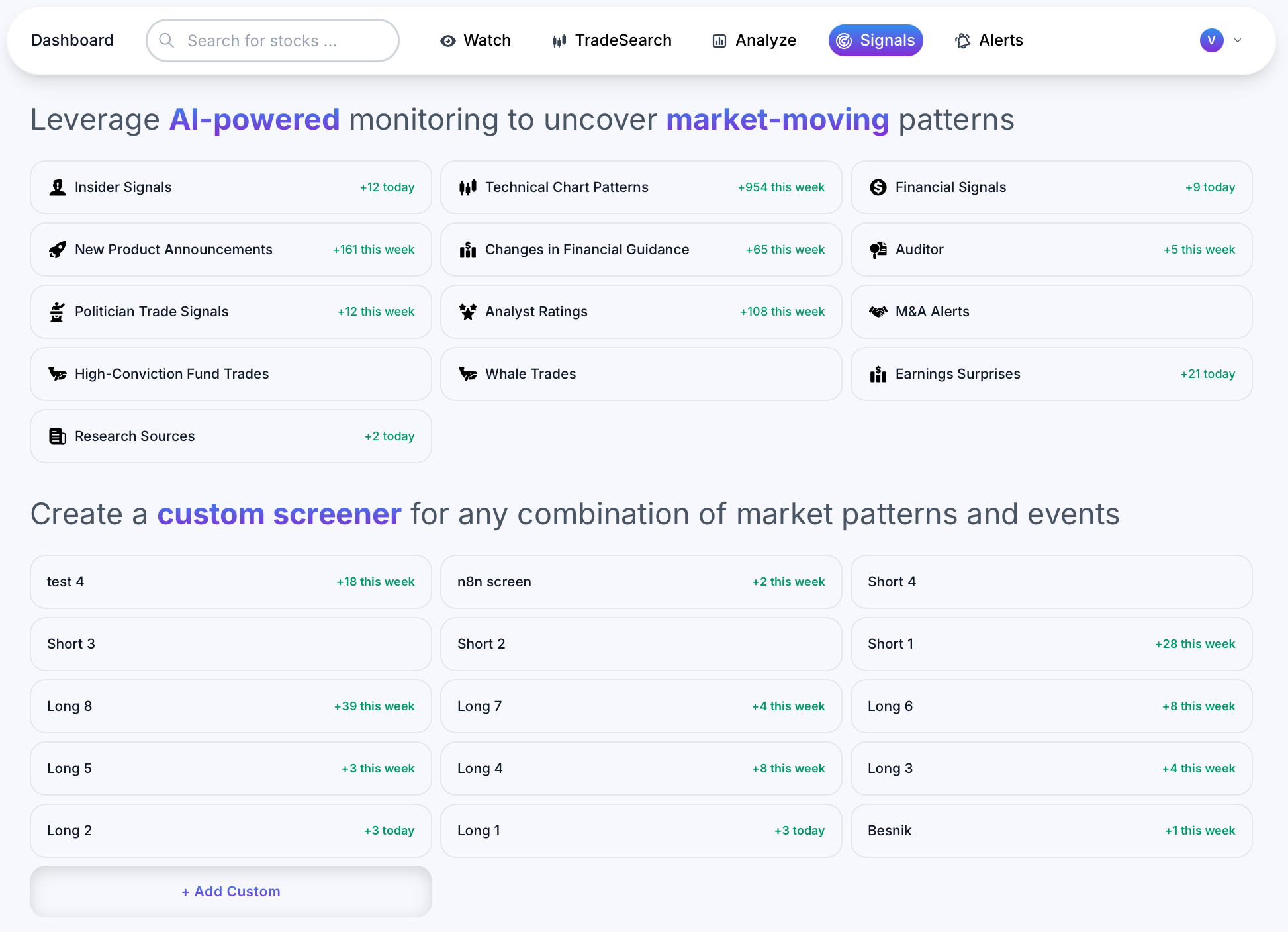
- Go to Signals in the menu
- Select a category (e.g., Insider Signals, Technical Patterns)
- Apply filters to narrow your results
7.2 Create Saved Searches (Tabs)
On any Signals category page, you can create a new Saved Search using the + button. Each Saved Search becomes its own tab, so you can maintain multiple strategies (e.g., "Small-cap insider clusters", "US breakouts", "Earnings misses").
7.3 Build a Custom Screener (Multiple Signals Combined)
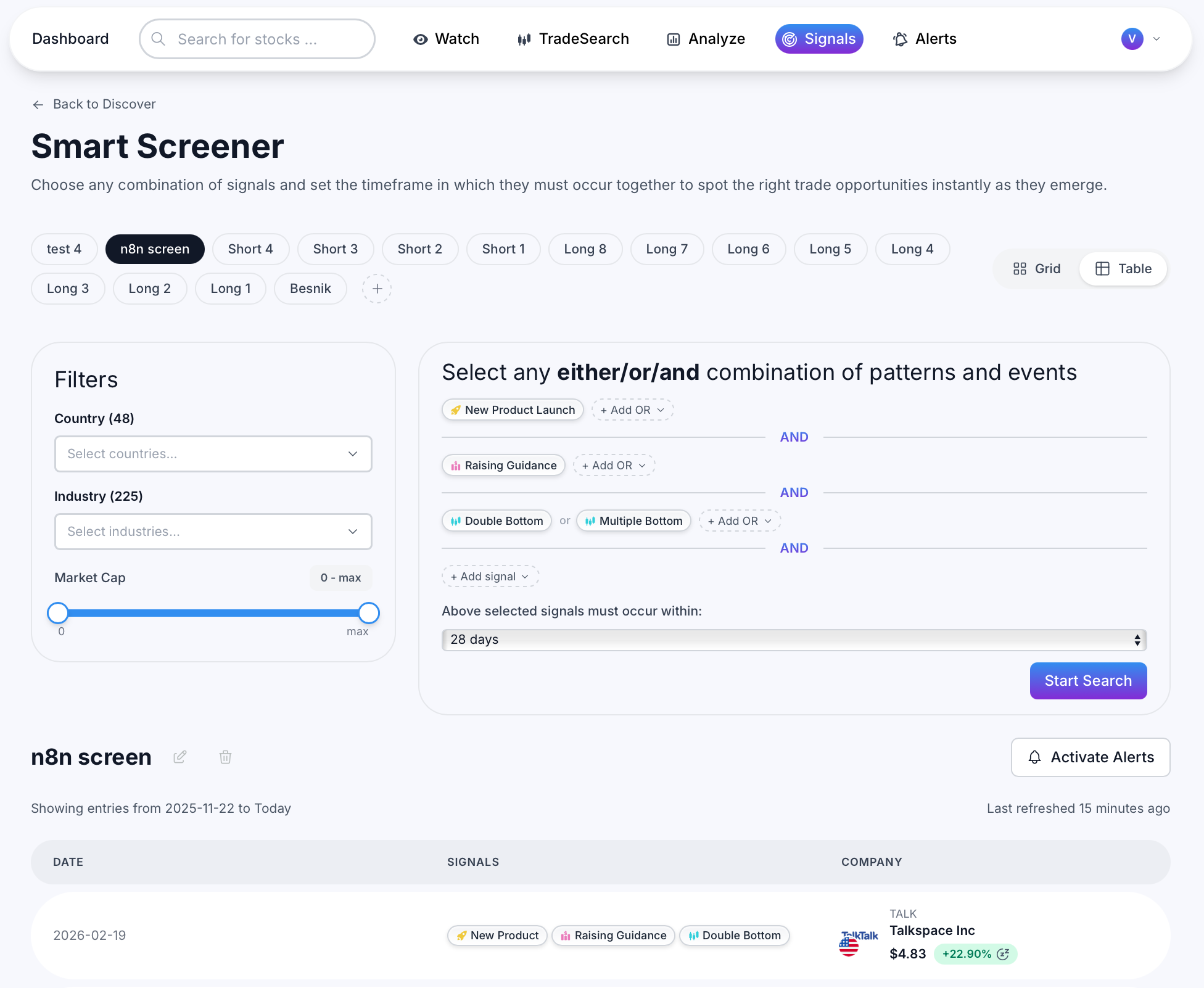
- Go to Signals
- Click Add Custom
- Select any "either/or" combination of signals and patterns
- Click Start Search
The screener stays active and automatically adds stocks when new matches are discovered. You can also enable alerts so you get notified when a new stock is added to your screener.
8. Chat with an AI Stock Analyst
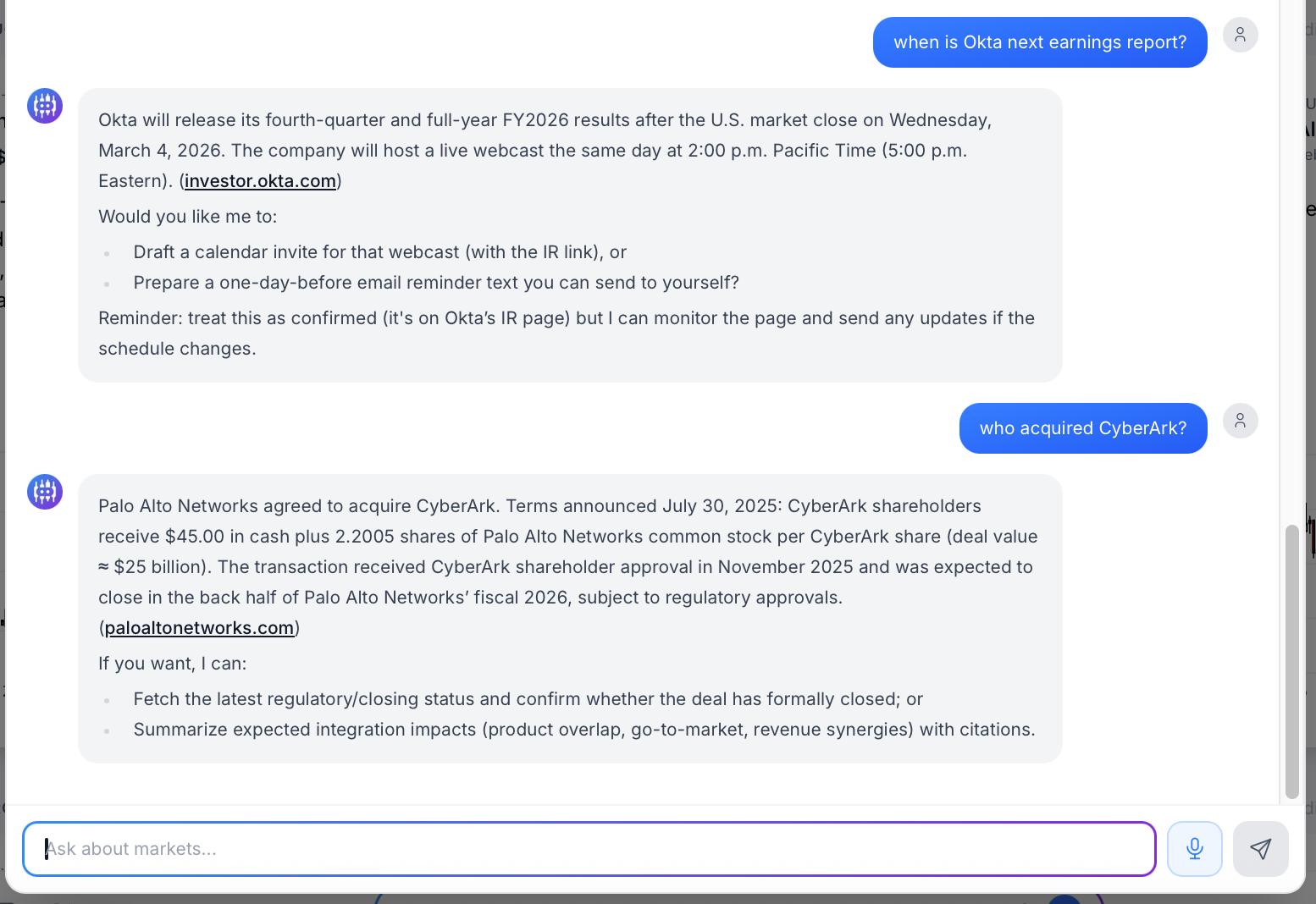
Use the bottom chat tab to ask anything about stocks, markets, catalysts, valuation, competitor comparisons, earnings, and risk factors. This is useful for deeper research and faster decision-making.
9. Market Patterns & Signals Glossary
This glossary explains every signal and pattern you may see in MarketAlerts.
Insider Signals
- ReBuy: An insider makes two purchases within a one-year period, and the second purchase is larger than the first. Often interpreted as increasing conviction.
- Cluster: Multiple insiders (often C-level and directors) buy shares within a short time window. Can indicate broad internal confidence.
- PowerBuy: Insider purchase over $100,000. Signals strong commitment by the buyer.
- Significant: Insider purchase that is significant (often >30%) relative to salary or existing holdings.
Technical Chart Patterns
- Double Top: Bearish reversal pattern with two peaks at a resistance level, suggesting a potential downtrend.
- Double Bottom: Bullish reversal pattern with two troughs at support, suggesting a potential uptrend.
- Multiple Top: Three or more peaks at similar levels, indicating strong resistance and bearish risk.
- Multiple Bottom: Three or more troughs at similar levels, indicating strong support and bullish potential.
- Head & Shoulders: Bearish reversal pattern with three peaks (middle highest), often signaling trend change from bullish to bearish.
- Inverse Head & Shoulders: Bullish reversal pattern with three troughs (middle lowest), often signaling trend change from bearish to bullish.
- Triangle BreakOut: Continuation pattern with converging trendlines; upward breakout can signal bullish momentum.
- Triangle BreakDown: Downward break from triangle consolidation; can signal bearish continuation.
- Ascending Triangle BreakOut: Typically bullish; price breaks upward from an ascending triangle.
- Ascending Triangle BreakDown: Failed bullish setup that breaks downward; can turn bearish.
- Descending Triangle BreakOut: Bullish breakout from a descending triangle; may indicate reversal.
- Descending Triangle BreakDown: Bearish continuation; breakdown below support from descending triangle.
- Bullish BreakOut: Price breaks above a key resistance level, indicating upward momentum.
- Bearish BreakDown: Price breaks below key support, indicating downside momentum.
- Death Cross: Bearish signal where the 50-day moving average crosses below the 200-day moving average.
- Golden Cross: Bullish signal where the 50-day moving average crosses above the 200-day moving average.
- Cup & Handle: Bullish continuation pattern resembling a "cup" followed by a smaller pullback ("handle").
Financial Signals
- GROWTH: Above-average revenue growth plus either positive operating cash flow or sufficient cash runway to sustain expansion.
- TANGIBLE: Trading near tangible asset value with low debt; insider buying may suggest undervaluation.
- CASHCOW: Trading below ~10x cash flow, maintaining revenue growth, and low debt — often associated with quality value.
- COMPOUND: High-potential compounder traits: strong revenue growth, positive operating cash flow, scalable market opportunity, reasonable entry valuation, and high insider ownership.
New Product Announcements
- New Product Announcements: Detects companies announcing new products in earnings calls or official updates.
Changing Financial Guidance
- Raising Guidance: Company increases guidance (often bullish if credible and demand-driven).
- Reducing Guidance: Company lowers guidance (often bearish and associated with demand slowdown or margin pressure).
Auditor
- Critical Audit Matter (CAM): Audit topic considered complex or high-judgment; investors often review these sections closely.
- Going Concern: Auditor signals substantial doubt about the company's ability to continue operating over the next 12 months.
Politician Trade Signals
- ReBuy: A politician makes a repeat purchase of the same company.
- Cluster: Multiple politicians buy shares of the same company within a short period.
Analyst Ratings
- Upgrade: Analyst rating improves (e.g., Hold → Buy). Can act as a catalyst for short-term price movement.
- Downgrade: Analyst rating worsens (e.g., Buy → Hold/Sell). Can pressure price or signal changing fundamentals.
Mergers & Acquisitions
- Merger: Two companies announce a combination into one entity.
- Acquisition: One company announces it will buy another company.
High-Conviction Fund Trades
- All-In: A fund allocates the majority of its portfolio into a single stock (high conviction positioning).
Whale Trades
- Whale Buy: A famous fund manager increases/buys shares of the stock.
- Whale Sell: A famous fund manager reduces/sells shares of the stock.
Earnings Surprises
- Positive Total Surprise: Revenue and EPS beat expectations.
- Negative Total Surprise: Revenue and EPS miss expectations.
- Positive Revenue Surprise: Revenue beat expectations.
- Negative Revenue Surprise: Revenue missed expectations.
- Positive EPS Surprise: EPS beat expectations.
- Negative EPS Surprise: EPS missed expectations.
Research
- Research Sources: Market research and investment thesis from selected research providers, summarized for faster decision-making.
10. Pricing & Plans
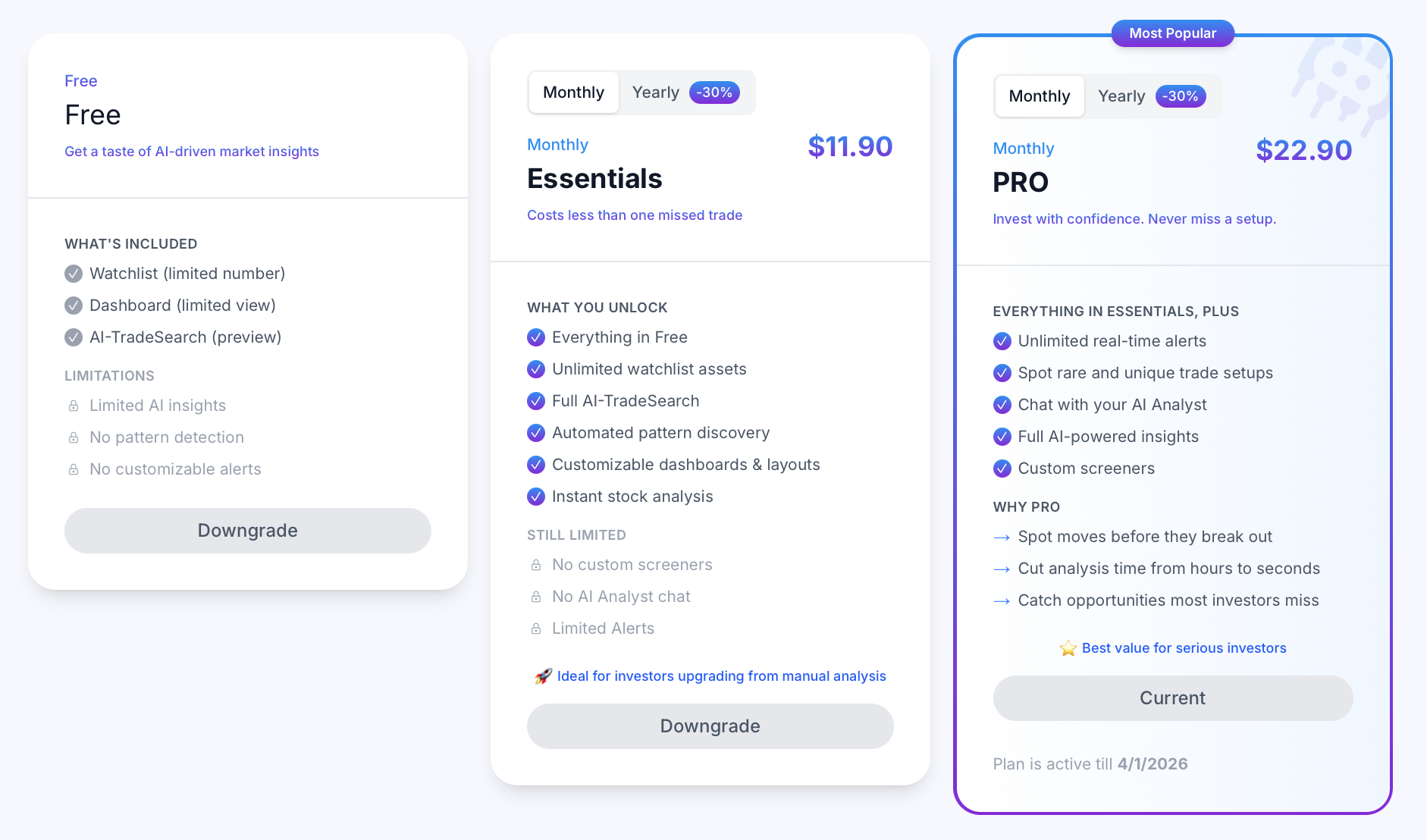
Pricing is accessible under Profile → Plans.
Free
Get a taste of AI-driven market insights with limited features (watchlists, limited dashboard, and TradeSearch preview).
Essentials
Unlock unlimited watchlist assets, full AI TradeSearch, automated pattern discovery, customizable dashboards/layouts, and instant stock analysis. (Still limited: custom screeners, AI Analyst chat, limited alerts.)
Pro
Full platform access: unlimited real-time alerts, custom screeners, AI Analyst chat, and full AI-powered insights. Designed for serious investors who want to spot setups early and reduce research time.
11. Troubleshooting
Not receiving alerts?
- In-app notifications: Check your phone settings → Apps → MarketAlerts → ensure notifications are enabled.
- Email alerts: Check spam, then verify your email under Alerts → Manage Contact Types (confirm the same email is verified).
- Telegram alerts: Open the
@marketAlertsOfficialBotchat and check if there are pending instructions or verification steps. - Still not working? Reach out via WhatsApp or Email.
Telegram not connected?
-
Open
@marketAlertsOfficialBotand follow any instructions shown in the chat.
Email in spam?
- Mark the email as Not Spam.
- Drag and drop it into your Primary inbox tab to improve future deliverability.
Push notifications disabled?
- Check your phone settings → Apps → MarketAlerts → enable notifications.
Screener not updating?
- Click Start Search again.
- If the screener produces an error, please contact us via WhatsApp or Email.
12. Support
For live support, reach out via WhatsApp or send us an Email.